
Use Chronic Insights for custom symptom logs on Apple Watch. Symp Trac suits quick entries, while Tended adds a wider health journal. All three let you save symptoms from your wrist. You set up the app on your phone first.
Body Insights takes a different approach. You log how you feel on iPhone, then read the check-in beside Pacing guidance from your Apple Watch data. Bearable and Guava also keep symptom entry on the phone. The useful choice is where you want to log and what you need to review later.
Body Insights
Plan today around the energy you have.
Body Insights reads Apple Health data from Apple Watch and translates it into energy, recovery, and pacing guidance.
Get my pacing readCompare symptom trackers for Apple Watch
Start with the Watch action. An app that imports sleep or heart rate may still need your phone for every symptom entry.
Swipe the table to see all columns on a small screen.
| App | What you do on Apple Watch | What you do on iPhone | Best fit |
|---|---|---|---|
| Chronic Insights | Record symptoms and other chosen items. | Set up fields and review charts. | Custom wrist entries with Premium. |
| Symp Trac | Log symptoms from your wrist. | Set up metrics and review monthly records. | Quick symptom and pain logs. |
| Tended | Log symptoms, medication, and journal entries. | Review patterns and prepare reports. | A broad journal with free Watch logging. |
| Body Insights | Check Watch health metrics. | Log feelings, then read Pacing and recent check-ins. | Symptoms beside Watch recovery context. |
| Bearable | Use Watch data through Apple Health. | Rate symptoms and import Apple Health data. | A detailed phone diary with custom fields. |
| Guava | Use Watch data through Apple Health. | Log symptoms beside health records. | Photos, body location, and symptom reports. |
1. Chronic Insights: custom symptom entries from your wrist
Chronic Insights is a good fit if you want to rate pain, fatigue, or other symptoms on Apple Watch. You choose the diary items that appear there, so the Watch list can stay short.
Set up those items in the phone app first. Open its Watch section, choose the items to show, and put the most used ones near the top. The Chronic Insights manual explains the setup and the Watch entry screens.
On Apple Watch, tap a symptom to enter a reading. Turn the Digital Crown to change a value, then tap the green button to move through the entry. The fields depend on the item you chose.
The Watch app needs a linked iPhone and a Premium subscription. Choose it when custom wrist entries matter enough to pay for that feature. The phone app also brings in heart rate, activity, and sleep from Apple Health. You can review those records beside your symptoms.
2. Symp Trac: quick symptom and pain logs
Symp Trac lets you save symptom entries from Apple Watch. Its phone app has several field types, including a yes-or-no entry, a number, and a scale from 0 to 10. That gives you room for both a simple symptom mark and a pain rating.
Use the monthly view to look back at the records you kept. Notes add context when a number will be hard to recall on its own. For some metrics, you can allow more than one entry per day.
Symp Trac also connects to Apple Health and has Watch face shortcuts. Its free plan has limits, so check the current plan before you set up a long list of symptoms. CSV export is free; its PDF report requires Premium.
This is a useful choice when you want short wrist entries and a monthly record on the phone. Keep the same scale for each symptom so later entries remain easy to compare.
3. Tended: a wider journal on Apple Watch
Tended lets you record more of the day from your wrist. Its Watch app accepts symptom ratings and medication logs. You can also record triggers, food, sleep, and other entries, or give the day a quick rating.
Watch logging is free, as the Tended feature guide explains. The free tier also has Watch face shortcuts. Entries sync to the iPhone app, where you review the wider record. This suits people who want several kinds of entries in one diary.
Tended+ adds longer history, deeper pattern views, PDF reports, and CSV export. Choose the paid features when you need those outputs. Test the fields you will use during a rough day. Check that your usual entries are easy to reach within the larger menu.
4. Body Insights: symptoms beside Apple Watch recovery
Body Insights combines an iPhone symptom check-in with its Pacing view. Choose it to review how the day felt beside your Watch data. It adds the activity and recovery context to your own account.
Apple Watch records measurements such as heart rate, sleep, and activity. Body Insights reads those records from Apple Health. It compares recent patterns with your usual. Your check-in adds the feeling and symptoms that a watch reading cannot describe.
Save the check-in on iPhone
In Settings, find Modules and turn on Manage a Chronic Condition. This requires Premium. Open the Body tab, find the Pacing card, and tap Log how you feel. In Today's Check-In:
- Choose Good, OK, Usual, Rough, or Very rough.
- Turn on Worse than usual after activity when that matches your experience.
- Select the symptom tags that apply. These include Fatigue, Brain fog, and Dizzy on standing.
- Add an optional note, then tap Save.
The Pacing card shows the saved feeling. Tap Change to correct today's entry or add a detail. You can leave the optional fields empty when a feeling rating is enough.
Read the saved feeling beside Pacing
In this screen, More Than Usual refers to yesterday's movement. The card says that moving took more out of the person than normal. Today's saved check-in is Good.
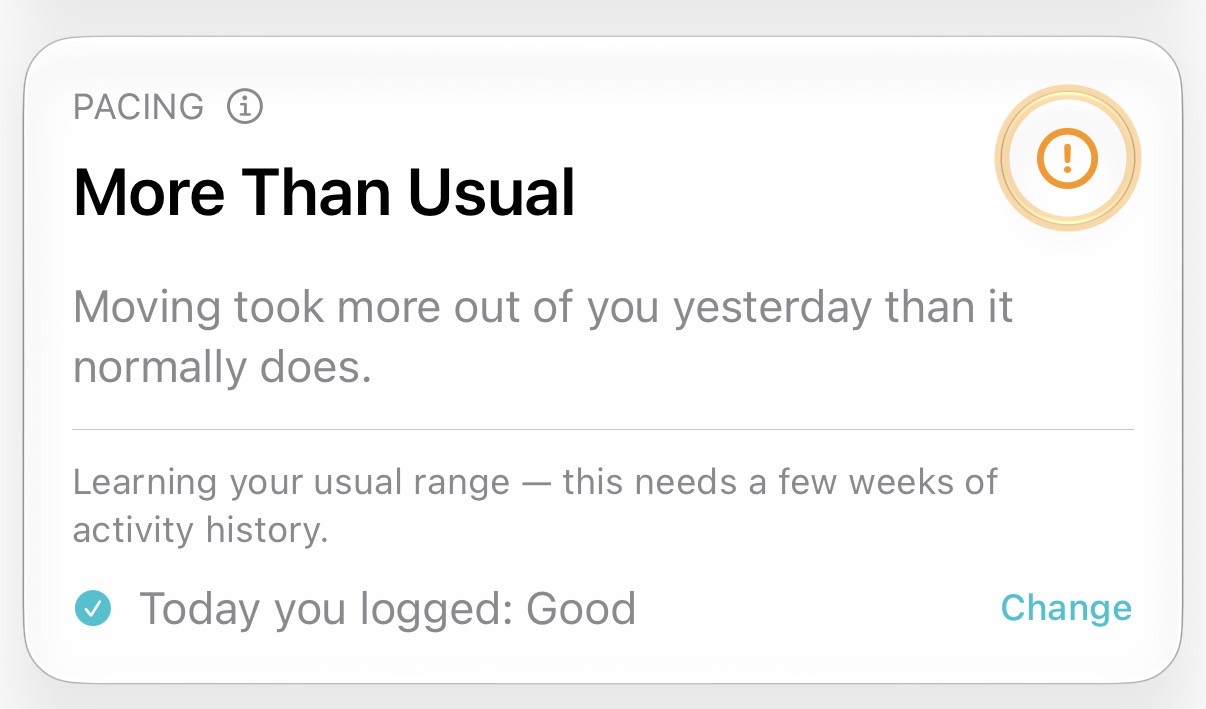
The card also says it is learning the person's usual activity range. The Pacing label guide explains how each reading relates to your own recent normal.
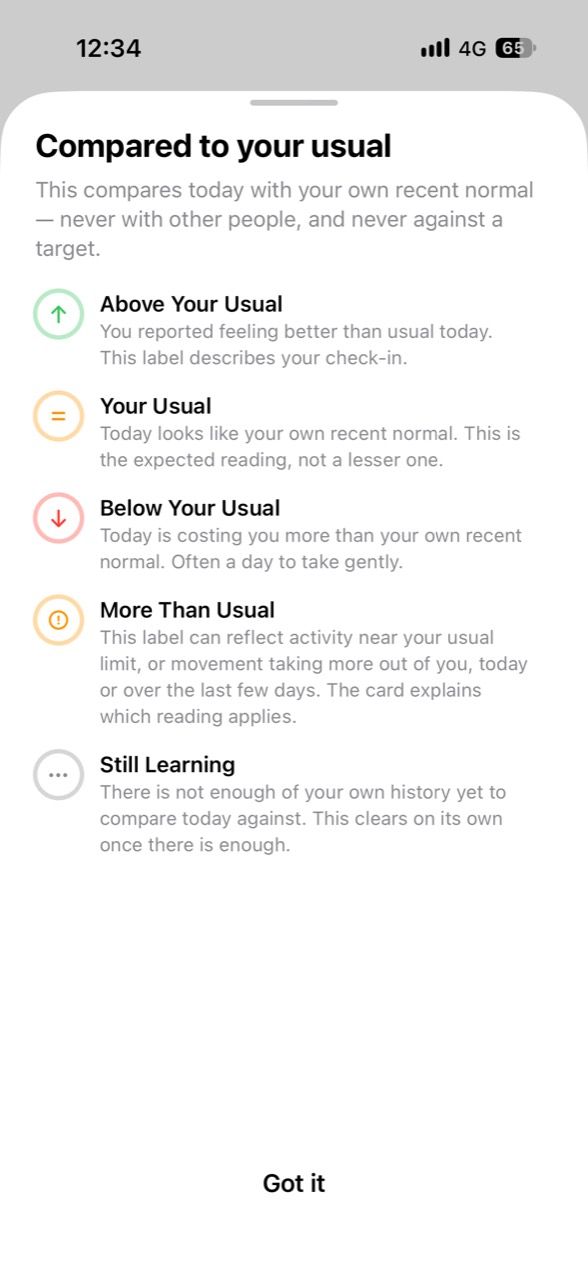
Open the Pacing details and find YOUR CHECK-INS to review the past 30 days. Saved entries show the date and feeling, plus any tags, note, or after-activity flag. If the Watch readings look usual but you feel rough, save Rough. That difference belongs in the record.
5. Bearable: detailed symptoms on the phone
Bearable lets you rate each symptom and record possible factors on iPhone. It has custom symptoms, severity ratings, notes, and charts. Its free feature list includes custom symptom logs and CSV export.
Bearable can import Apple Health measurements, including records from your Apple Watch. Set this up through Profile, then Apple Health data, as shown in its sync guide.
Use Bearable for symptom entry on iPhone. Your Bearable symptom logs stay in Bearable. The app does not send them back to Apple Health. Choose it when detailed phone logging is your priority.
6. Guava: symptom reports with health records
Guava keeps symptoms beside your wider health record. You can add severity, notes, photos, and body location. It is a useful phone diary when the record needs more detail than a rating.
From Home, choose Symptoms and select what you want to log. Guava's symptom guide shows the fields, charts, and PDF report. You choose a date range for the report and can include photos and body-map records.
Guava imports supported Apple Health data. Log symptoms on iPhone and review them with your Watch measurements as added context. Choose it when the phone record and report matter most.
Check where your symptom entry goes
Save a test entry before you build a long diary. If you chose a Watch app, log from the wrist and find the entry on the phone. Check its date, time, symptom name, and rating. Then check how to correct a mistake.
For example, you might log pain after a grocery trip and add a note later. The useful record keeps the symptom and the event clear. A change in symptoms can have several causes. Keep lighter days in the diary too, so you have more days to compare.
Apple Health connections need a separate check. An app may import sleep and heart rate while keeping symptom entries in its own diary. Read which data types it can import or write before you expect the same entry in another app.
If you need a report, try the export before you pay for a year of tracking. Open the file and check that you can read the dates and symptom names. Use PDF when you need a formatted document and CSV when you want to work with rows in a spreadsheet.
Choose a wrist logger when reaching for the phone stops you from recording a symptom. Choose Body Insights when the main job is a daily check-in beside Watch recovery and Pacing. For other Watch tools, see the Apple Watch apps for chronic illness comparison.
Related guides
- Pacing apps for Apple Watch
- Fibromyalgia symptom tracking and pacing
- Chronic illness apps and Apple Watch guides
Body Insights
Plan today around the energy you have.
Body Insights reads the Apple Watch data you already have and turns it into a plain daily read on energy, recovery, and pacing.
Get my pacing read