
Choose a pacing app for Apple Watch by the decision you need help with. Metered fits spoon-based task planning. Trackuility helps you follow activity limits. CoPace adds live pacing alerts, while Pacebase tracks a time budget. Body Insights shows movement cost beside how you feel.
These apps support pacing around chronic illness and variable daily energy. Compare what you can check on your wrist, what needs your iPhone, and how much you must log. The same watch data can lead to different app readings.
Body Insights
Plan today around the energy you have.
Body Insights reads Apple Health data from Apple Watch and translates it into energy, recovery, and pacing guidance.
Get my pacing readChoose a pacing app for Apple Watch
A useful app should help you change a plan or notice when an activity costs more than expected. Start with the job you need most.
Swipe the table to see all columns on a small screen.
| App | Best fit | Apple Watch role | What you check on iPhone |
|---|---|---|---|
| Metered | Plan tasks against a spoon budget. | Check the budget and complete activities. | Plan today and tomorrow; review activity costs. |
| Trackuility | Follow your chosen activity limits. | View trackers, widgets, and threshold status. | Set pacing profiles and review past days. |
| CoPace | Get live pacing alerts during activity. | Monitor heart rate with wrist movement and haptic alerts. | Read daily energy, effort-minutes, and check-ins. |
| Pacebase | Follow a budget for time above a heart-rate threshold. | Check the Body Budget widget. | Read Body Score and activity impact. |
| Body Insights | Read movement cost beside how you feel. | Supplies activity and recovery records through Apple Health. | Read Pacing guidance and save or review check-ins. |
All five have an Apple Watch app. The Pacing card and check-in steps shown here for Body Insights are on iPhone. Apple Health stores the available watch records that connected apps use.
1. Metered: plan tasks with spoon costs
Metered fits readers who want to assign energy costs to tasks before filling the day. You build today and tomorrow around a spoon budget. On Apple Watch, you can check that budget and mark activities complete.
Add the parts of a task that take effort. A grocery trip can include getting ready, travel, standing in a queue, and putting food away. In the day review, record how the activity felt so you can adjust its cost for a later plan.
The free version includes daily planning and the Watch app. Metered+ is a one-time purchase. It adds a Morning Signal from Apple Health records. These include sleep, resting heart rate, and heart rate variability, or HRV. The signal compares readings with your own baseline and sleep target.
Choose Metered when your main problem is fitting tasks into the day. Keep the task costs personal. A budget is most useful when you change it to match your experience.
2. Trackuility: set limits for activity
Trackuility lets you set separate limits for activity and health readings. Its trackers cover different periods. You can choose a pacing profile for the day and set boundaries for the readings you follow.
The Watch app has tracker views and widgets. These let you check which readings are near the limits you chose. On iPhone, the calendar shows past days, including symptoms and notes you entered.
Start with a few trackers that relate to the demands you need to manage. For example, steps and standing time can help describe an errand. Look back at those readings beside how the day felt before adjusting the next plan.
Trackuility is free. Its history and reports help you review the days around a harder spell. Use the current trackers for today's status.
3. CoPace: use live alerts during activity
CoPace fits readers who want a tap on the wrist while they are active. Its Watch monitoring uses heart rate and wrist movement together. The app calls this its Motion Filter.
CoPace uses wrist movement to help identify active effort. It treats heart-rate rises while you are still as a separate reading. Its Watch Shield provides live pacing alerts. You can also use background records when the Shield is off.
On iPhone, Energy Reserve compares effort-minutes with a budget you set. Morning energy and evening check-ins give you a way to review the day. Keep the effort-minute unit in mind when comparing it with a spoon planner.
CoPace has free pacing features. Its paid version can tune the threshold and energy estimate to your patterns. Try the alerts during an ordinary activity. Check the settings you need before choosing paid access.
4. Pacebase: follow a time budget
Pacebase tracks time spent above the app's heart-rate threshold. Its Body Budget shows that allowance in the app and on an Apple Watch widget.
The iPhone app also has a Body Score that describes recovery. You can track activities and review their impact on the budget. This connects a named activity with the time it used.
Choose it when a time allowance is easier for you to follow than task costs. Check which heart-rate threshold the app is using before you interpret time above it.
Pacebase requires a subscription. Read the offer in the app before starting a trial, including its length and renewal price.
5. Body Insights: read movement cost and feelings
Body Insights Pacing uses recent activity and recovery signals. It compares these with your own usual pattern. Its iPhone card explains what stands out. Your saved feeling adds the part of the day that watch measurements alone do not describe.
In this Pacing card, More Than Usual refers to yesterday's movement. The explanation says moving took more out of the person than normal. Today's saved feeling is Good.
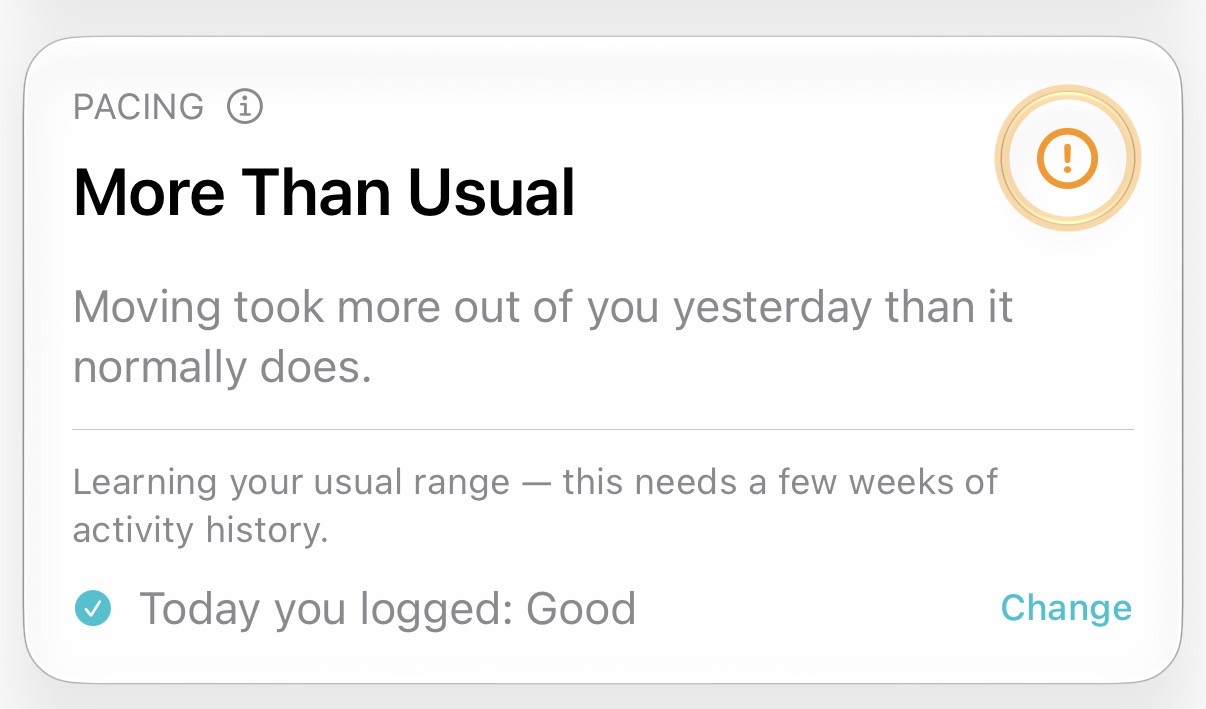
Read the explanation with the label when you review your plans. This card also says it is still learning the person's usual activity range. Read that notice too when you plan the day.
Compare the card with your own usual
The Compared to your usual guide explains the labels against your own recent normal. Your Usual means the reading is near that normal. More Than Usual can describe activity near your usual limit. It can also mean movement took more effort.
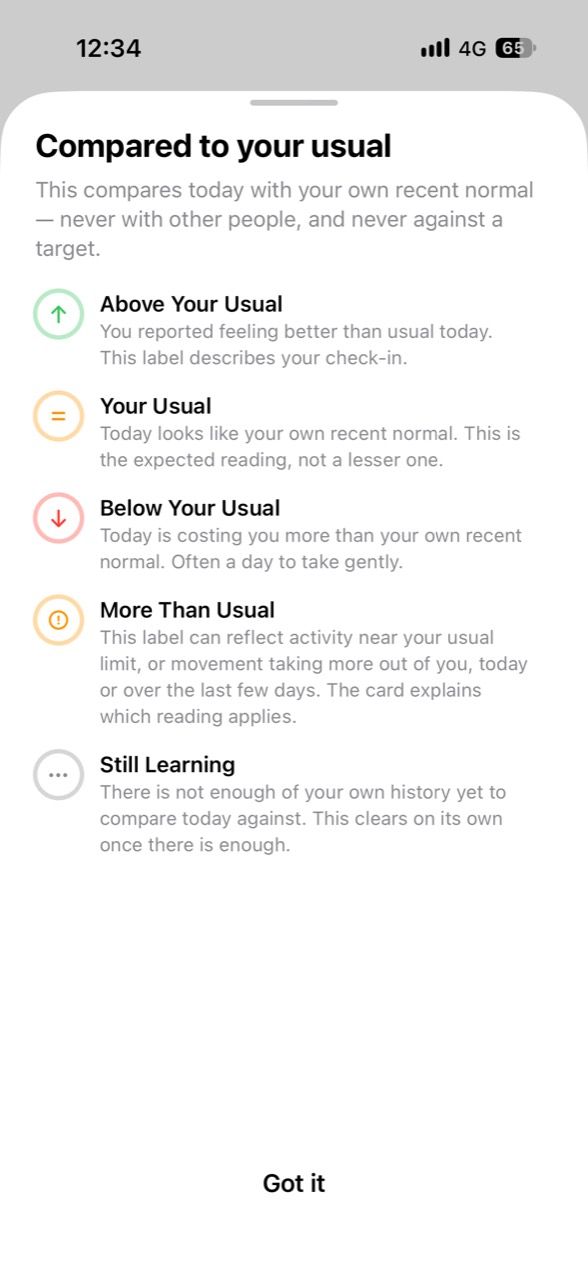
Use this view when you want to compare what a day demanded with how you felt. A good feeling today and costly movement yesterday can both belong in the record.
Save a short check-in on iPhone
Pacing requires Premium. In Body Insights settings, turn on Manage a Chronic Condition, then open the Pacing card in the Body tab.
- Tap Log how you feel.
- Choose Good, OK, Usual, Rough, or Very rough.
- Select Worse than usual after activity when that describes the day.
- Add a symptom tag or note if useful, then tap Save.
The card shows the saved feeling. Use Change to edit today's entry. A short note such as "shopping trip, long queue" can help when you review your recent check-ins.
Choose Body Insights for this movement-cost and feeling comparison. For more detail on saved entries, see symptom tracker apps for Apple Watch.
Choose between a spoon budget and a watch reading
Spoon planning assigns an estimated cost to tasks. You choose the costs and change them when experience shows that a task takes more effort. Watch-based readings use measurements to build the app's result. These can include activity and heart rate.
The units differ. Metered uses a spoon budget. CoPace uses effort-minutes, while Pacebase follows time above a threshold. Trackuility lets you follow several limits. Body Insights Pacing explains demand and movement cost against your own usual pattern.
Keep each reading in its own unit. A spoon cost and a movement-cost label can help with the same decision without being equal values.
A sample plan with room to change
This sample uses chosen spoon costs. The numbers illustrate a plan. They are not measurements from Apple Watch or Body Insights.
| Task | Example cost | Plan |
|---|---|---|
| Washing and breakfast | 2 spoons. | Keep. |
| Grocery trip, including travel | 4 spoons. | Keep the list short. |
| Make lunch | 2 spoons. | Use a simple meal. |
| Phone call | 1 spoon. | Move if needed. |
| Left unplanned | 3 spoons. | Keep available. |
The tasks use nine of the twelve chosen spoons. Before the phone call, check how you feel and the reading you follow. Move the call if you need a lighter afternoon, even if the planner still has room.
At the next check-in, note any change after the trip. Use that record when you plan the next errand. A spare spoon is a planning estimate, not a reason to ignore feeling worse.
Set up one useful daily check
Choose one app for the job that changes your decisions most. Set up its watch view or complication if you need a wrist check. For Body Insights Pacing, keep the iPhone card and saved feeling easy to find.
Give the app access to the Apple Health records it requests for that feature. Check that its current view contains your data. If it is still learning, use the explanation on screen when you read the result.
Try a short routine: check before an errand, look again if it gets harder, and record how you felt afterward. Keep the entries you use when planning another day. For a wider app choice, see Apple Watch apps for chronic illness.
Body Insights
Plan today around the energy you have.
Body Insights reads the Apple Watch data you already have and turns it into a plain daily read on energy, recovery, and pacing.
Get my pacing read